
Quick Start
Setup
First we will install the dependencies.
- python3 is needed by the Jarklin server as the runtime
- ffmpeg is needed by the Jarklin server to process videos
- curl is used to download the wizard and by the wizard to download additional assets
- whiptail is used by the wizard as the UI
sudo apt install python3 python3-pip ffmpeg curl whiptailWARNING
Depending on you linux distro you might have a different package-manager than apt or the packages have different names. Before installation make sure that this command is correct.
WARNING
depending on the distro whiptail may be available through the newt package.
Installation
First you should go into the directory you want to install Jarklin into. The recommended directory is /opt/.
cd /opt/To use the latest version of the wizard run the following command:
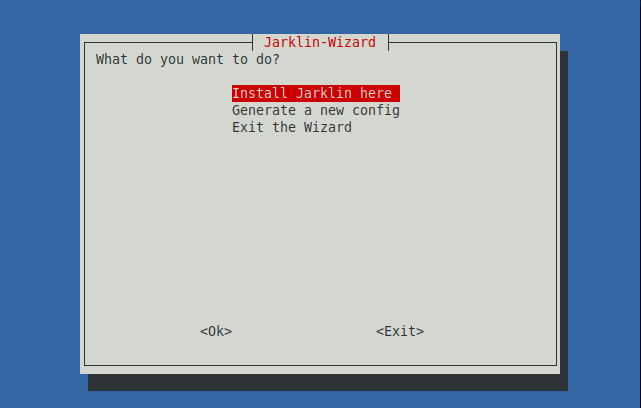
curl -Ls https://github.com/jarklin/jarklin/raw/main/scripts/wizard.sh | bashThis will start the UI. Here you can select what the wizard should do.
Select Install Jarklin here and press <return>.
Now to the features you want to install. Toggle them with <space>. If you have selected what you want to install you can press <return>.
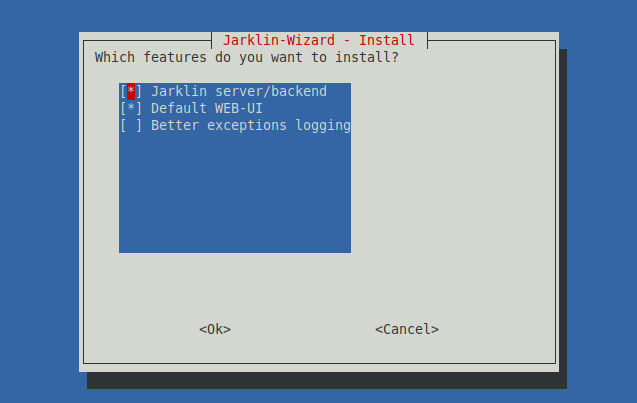
After the installation you can exit the wizard.
Configuration
Go into the directory of the media you want Jarklin to serve.
cd /path/to/media/After that you can start the wizard again.
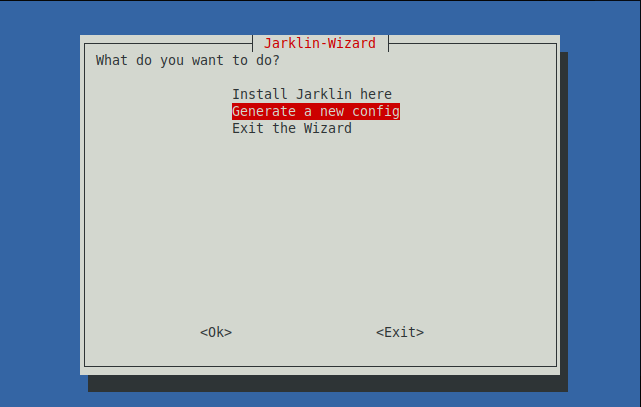
curl -Ls https://github.com/jarklin/jarklin/raw/main/scripts/wizard.sh | bashSelect Generate a new config and press <return>.
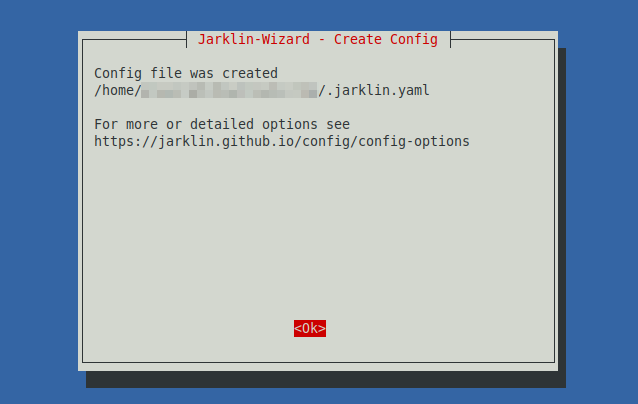
This should ask you step by step on how you want Jarklin to be configured and will generate a custom configuration file.
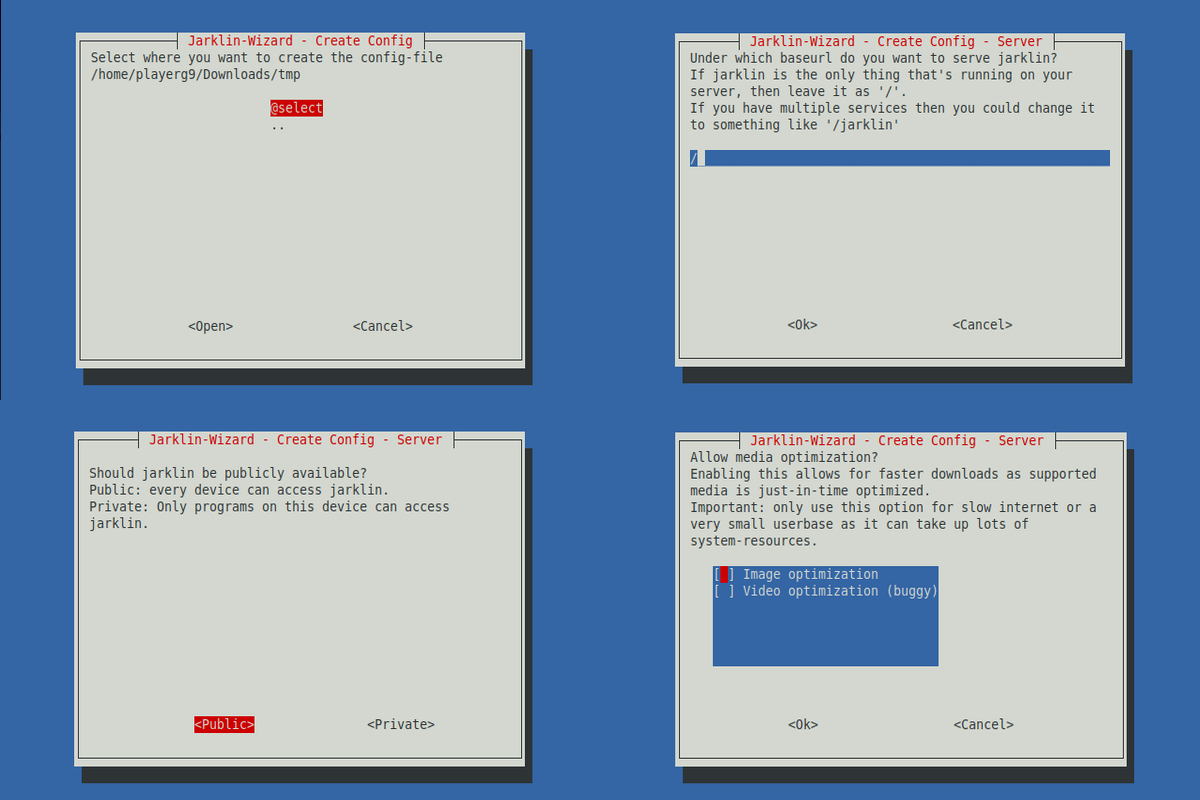
In the end there should be a message that the generation is complete.
Cache generation and Server starting
Stay in the directory where your media and the configuration file is located.
With the following command you can generate the cache:
/opt/jarklin/jarklin cache generateThis process will take, depending on your media, between a few minutes or a few hours.
Be patient for this step. This is unavoidable but luckily only has to be done once.
After the cache is done generating, you can start the web-server.
/opt/jarklin/jarklin web runIf you haven't changed the port you should be able to visit http://localhost:9898/ and see your media.
After the verification, that Jarklin works you can press ctrl+c to stop the server.
Persistence
But you don't want to keep a terminal open in order to serve your media. For that purpose we will create a service.
Write the following service configuration into /etc/systemd/system/jarklin.service. (Adjust the content to your needs)
Use jarklin.service if the web-server and the cache-generation should be combined. Or use two services (jarklin-web.service+jarklin-cache.service) if you prefer more control.
[Unit]
Description=Jarklin
After=network.target

[Service]
Type=simple
User=myuser
WorkingDirectory=/path/to/media/
ExecStart=/opt/jarklin run
Restart=on-failure

[Install]
WantedBy=multi-user.target[Unit]
Description=Jarklin Web
After=network.target
[Service]
Type=simple
User=myuser
WorkingDirectory=/path/to/media/
ExecStart=/opt/jarklin web run
Restart=on-failure
[Install]
WantedBy=multi-user.target[Unit]
Description=Jarklin Cache
After=network.target
[Service]
Type=simple
User=myuser
WorkingDirectory=/path/to/media/
ExecStart=/opt/jarklin cache run
Restart=on-failure
[Install]
WantedBy=multi-user.targetAfter that we will tell systemctl to search for new/changed .service files, enable auto-start of Jarklin after reboot and to start Jarklin.
sudo systemctl daemon-reload
sudo systemctl enable jarklin.service
sudo systemctl start jarklin.service
TIP
If you don't want to create the service as root, but instead the current user, you can create the .service file in ~/.config/systemd/user/ and add --user to the systemctl commands.